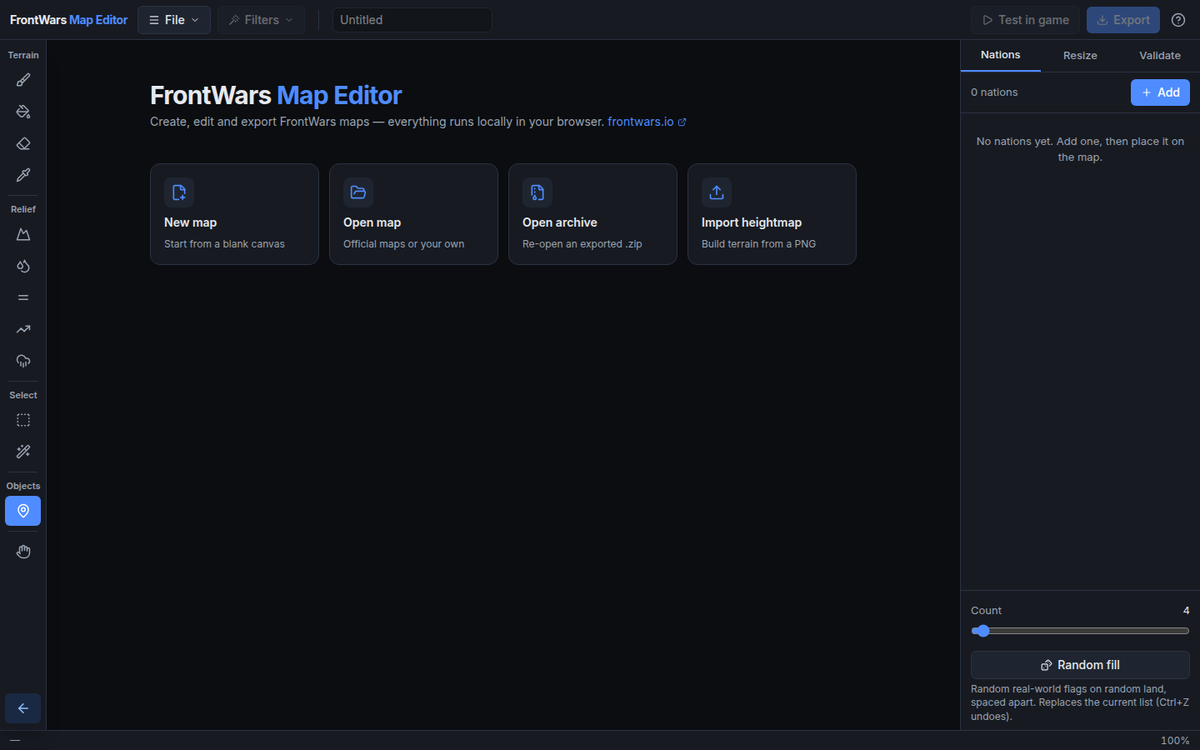
The FrontWars map editor is a free browser tool for building your own battlefields on this OpenFront fork. You open it from the main menu, pick a starting point, paint land and mountains, place nations, and press Test in game to play the map right away. When it plays well, you can submit it to Community Maps for other players. If you just want to play first, start a regular FrontWars match on our home page and come back to the editor later.
Where to find the map editor
The editor lives at frontwars.io/editor/ and opens from the Map editor button at the bottom of the main menu's left sidebar. When it first launched, it was also reachable from the Custom tab in Single Player. It runs entirely in the browser, and since a mid-2026 redesign it supports touch, so drawing with one finger and pinch-zooming with two works on an iPad.
Pick a starting point
The editor's home screen offers four ways in:
- New map: start from a blank canvas. You choose a name, a size preset or your own width and height (snapped to multiples of 4), and whether the canvas starts as blank water or blank land. Land starts can get a water border frame.
- Open map: load an official map or one of your own, then remix it.
- Open archive: re-open a .zip you exported earlier.
- Import heightmap: build terrain from a PNG, where brightness becomes land, water and elevation. A threshold setting decides which dark pixels turn into water.
Below the cards, Recent projects lists maps you worked on before. Projects save themselves locally, and Ctrl + S saves manually.
Shape the terrain
The tool rail on the left groups tools by job. Hovering it shows each tool's name and key.
Terrain and relief tools
| Group | Tool (key) | What it does |
|---|---|---|
| Terrain | Brush (B) | Paints the selected material at the chosen land elevation |
| Terrain | Bucket fill (G) | Fills the connected patch of one color |
| Terrain | Erase to water (Shift+E) | Paints water over anything |
| Terrain | Eyedropper (I) | Picks up the material and elevation under the cursor |
| Relief | Elevation (E) | Raises, lowers or sets height |
| Relief | Smooth / Sharpen (S) | Softens jagged peaks or crisps up ridges |
| Relief | Flatten (L) | Levels land toward the height where the stroke starts |
| Relief | Ramp (R) | Drag a line to get a smooth elevation gradient |
| Relief | Erosion brush (O) | Lets steep terrain slide downhill |
| Select | Select rectangle (M) / Magic wand (W) | Limits every tool and filter to the selected tiles |
For whole-map work, open Filters. Generate noise builds continents and islands from fractal noise, Erosion carves valleys and ridges, and Terrace turns heights into flat plateaus. Each filter shows a live preview before you apply it and counts as a single undo step. If you would rather trace a real coastline, load a reference image under the map and paint over it.
Place nations and check the map
A map needs nations, the computer-controlled countries that spawn on it.
Add and tune nations
Use Place nation (N) or the Nations tab to add one, then set its name, flag and strength. Every flag in the game is available. Random nations drops real-world flags on random land, spaced apart, and you can fine-tune them afterwards.
Validate before you test
The validation panel shows land and water counts, total tiles and the estimated map size, and flags errors and warnings before you share anything. One cleanup option, Remove tiny islands & lakes, applies when you export or test. Fairness is your job: compare the routes out of each likely spawn area, and use our spawn and chokepoint notes for official FrontWars maps as a reference for what feels balanced.
Test, export and share your map
When the map looks right, you have three ways to use it.
Test in game
Test in game saves the map to your drafts and opens FrontWars. From there you can play it from Single Player → Custom, or submit it through Community Maps. A Back to the game button sits at the bottom of the left toolbar if you just want to leave.
Export a .zip
Export packages the map as a .zip to back it up or send to a friend. In the game, Single Player's custom maps section has an Upload map button for these files; uploaded maps are stored on that device and play locally.
Submit to Community Maps
Signed-in players can submit a map with a name and a description, after confirming they made it. Moderators review every submission, and the game asks that maps be playable and free of offensive or harassing content. While a map is in review you can still play it in Single Player or a private lobby with friends. Approved maps appear in the Community Maps hub, where players can sort by Top rated, Most played or Newest, and the best ones can be added to public games.
Once your map is live, read our strategy guide for winning FrontWars matches with friends on it, or tweak how the map looks on your own screen with the FrontWars theme settings for map background and water colors.
FrontWars Map Editor FAQ
Do I need an account to use the FrontWars map editor?
No. The editor runs in the browser without a download or an account. You only need to sign in when you submit a map to Community Maps.
Can I edit an official FrontWars map?
Yes. Choose Open map on the editor home screen and load an official map as a starting point for your own version.
How big can a map file be for Community Maps?
The map .zip can be up to 20 MB and its thumbnail up to 512 KB. Only a few maps can wait in review at once, so discard one if you hit the limit.
What happens when I update a map that is already published?
Submit an update from the map's page. It gets a new version while keeping its likes and plays, and old replays still load the version they were played on.
Can I use the map editor on a tablet?
Yes. Since the July 2026 redesign the editor supports touch: draw with one finger and pinch-zoom with two.
Which keyboard shortcuts should I learn first?
Ctrl + Z to undo, Ctrl + Shift + Z or Ctrl + Y to redo, and Ctrl + S to save. Press ? to open the built-in guide with every tool and hotkey.
Start small: a New map with a blank water canvas, one continent, four nations, then Test in game.