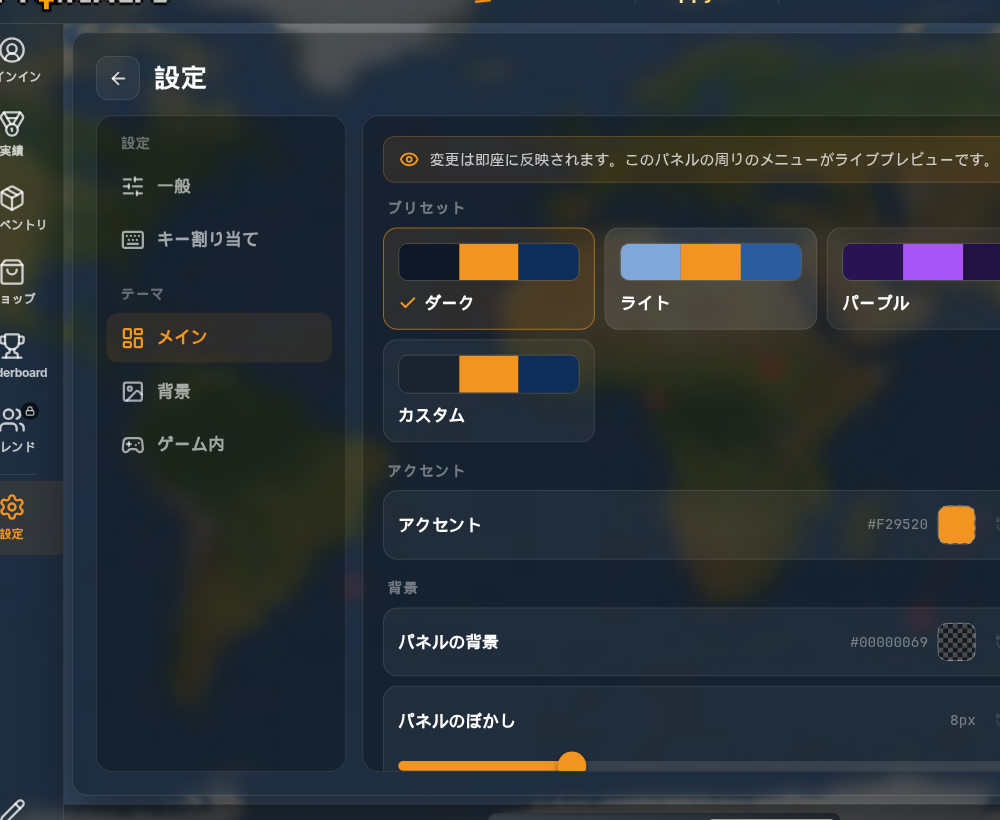
To change the theme in FrontWars, open Settings from the main menu and look at the Theme group in the left column: Main, Background and In-game. Pick a preset or adjust single colors, and the menu around the panel updates instantly as your preview. You can export the result as a .json file and import it on another device. All of this works in the browser version you can launch from our FrontWars home page.
Where the theme settings are
Settings has two groups in its left column. The first, Settings, holds General and Keybinds. The second, Theme, holds the three pages that control colors:
- Main for the menu: presets, accent, panel background and blur, text color and font.
- Background for the animated backdrop behind the menu.
- In-game for the map you see during a match.
A note at the top of the Main page explains how to judge your changes: "Changes apply instantly — the menu around this panel is your live preview." There is no save button to hunt for.
Pick a preset first
Four presets sit at the top of the Main page: Dark (the default), Light, Purple and Custom. Choose the one closest to what you want, then adjust from there. Custom keeps your own picks even after you switch to one of the built-in presets, so you can try Light for a match and come back to your colors later. When the developers polish the built-in presets in an update, an unchanged preset picks up the new version, while a customized theme stays as you left it.
What each theme page changes
Main: accents, panels and text
| Setting | What it changes |
|---|---|
| Accent | The accent color used across the menu |
| Panel background | The background color of the panels |
| Panel blur | How strongly panels blur what is behind them |
| Text color | The main text color |
| Font | Sans, Serif, Mono, Rounded, or Custom… with any installed font name such as Arial |
Background: filters and tint
The Background page has five filters (Blur, Brightness, Contrast, Saturation and Hue) and a Tint color. A War-room animation switch turns the animated backdrop on or off.
In-game: map background and water
HUD and map colors are tuned inside a short sandbox match, so you see them as they look in a real game. Press Launch live preview and open the Theme tab in the in-game settings panel. There you can set the Map background and Water colors while the match keeps running behind the panel.
Export and import a FrontWars theme
Themes travel as small .json files, so sharing one with a friend takes a few seconds.
Export your theme
At the bottom of each theme page (Main, Background and In-game), type a file name (the default is frontwars-theme) and press Export. The browser downloads a .json file that lists every value you set, from the accent color and font to the map background and water colors.
Import a theme
Press Import and choose a .json theme file. If the file is not a FrontWars theme, the game shows "Invalid theme file" and keeps your current colors. Reset all to default returns every value to the original theme in one click.
Other display settings worth knowing
The theme only covers colors and fonts. Other switches change what you see in a match.
Settings that change the battlefield view
- Settings → General has on/off switches for Structure Sprites, Territory Patterns, Special effects and Hidden Names.
- Alert Frame, also under General, adds a glow around the screen edge when you are attacked or betrayed.
- Hide Interface (H by default) clears the whole HUD for clean screenshots; press H or Esc to bring it back.
Cosmetics from the Shop, such as patterns, flags and railroad styles, are separate from the theme and do not change gameplay. Hotkeys live under Settings → Keybinds. If you are new to the game, our beginner's phase-by-phase plan from spawn spot to first buildings covers where to start and what to build first. If text or colors look wrong after an update, check the FrontWars bug tracker for display and rendering issues. And once your colors are set, you can design a map to show them off in the step-by-step FrontWars map editor walkthrough. Japanese-speaking players can switch the interface language with the language button in the top bar and read our 日本語のFrontWars攻略ガイド.
FrontWars Theme FAQ
Why can't I find the HUD colors in the main Settings menu?
HUD and map colors are edited inside a sandbox match. Open Settings, choose Theme → In-game, press Launch live preview, then use the Theme tab of the in-game settings panel.
Does a theme change how the game plays?
No. A theme only changes colors, blur and fonts in the menus and on the map. Troops, gold and combat stay exactly the same.
Can I use my own font in FrontWars?
Yes. In Theme → Main, set Font to Custom… and type the name of a font installed on your device, for example Arial.
What is inside an exported FrontWars theme file?
A .json file named frontwars-theme by default, with values such as accent, textPrimary, fontFamily, panelBg, panelBlur, the background filter values, canvasBg and waterColor.
How do I go back to the default look?
Press Reset all to default at the bottom of the Main, Background or In-game theme page. If you only want to leave your custom colors for a while, pick the Dark preset instead; your Custom preset stays saved.
Start with a preset, change one color at a time while watching the live preview, and export the result once you like it.